Conditional redirection enables you to create personalized user journeys by automatically directing form submitters to different pages based on their responses. This powerful feature transforms static forms into intelligent routing systems that enhance user experience and improve conversion rates.
Prerequisites:
- Everest Forms Pro.
- Form Confirmation Configuration.
After setting up the form confirmation type for form submission, you can enable Conditional Logic to set up conditional confirmations.
Getting Started #
Follow these steps to get started with setting up conditional redirection after form submission:
Step 1: Access Confirmation Settings #
- Navigate to Everest Forms > All Forms.
- Click Edit on your target form.
- Select the Settings tab.
- Choose Confirmation from the sidebar menu.
Step 2: Enable Conditional Logic #
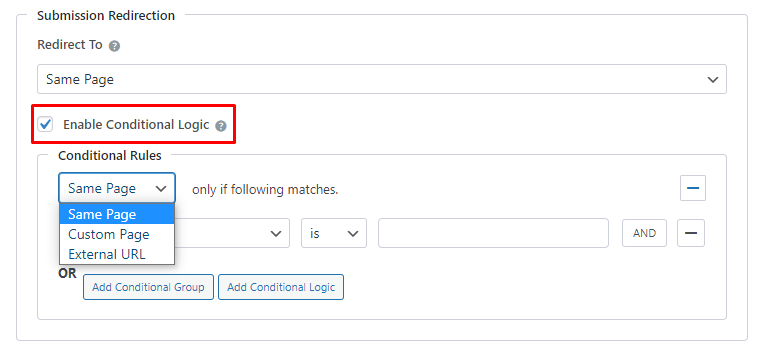
- Locate the “Enable Conditional Logic” toggle.
- Switch to the ON position.
- The “Conditional Confirmation” panel will expand.
- Click to configure your conditional rules.

Understanding Conditional Logic on Form Confirmation #
Priority System: When a user submits your form, Everest Forms evaluates conditional rules first. If conditions match, the user receives the conditional response (redirect, message, etc.). If no conditions match, the user automatically gets your default confirmation settings. This two-tier system ensures every submission receives appropriate feedback while enabling special experiences for targeted responses.
Configure Conditional Rule #
After enabling the conditional logic, you can set up the confirmations for each type. So, start by selecting the confirmation type and setting it up. Select one of three redirection options. For every redirection type, you can add various conditions.
Choose Confirmation Type #

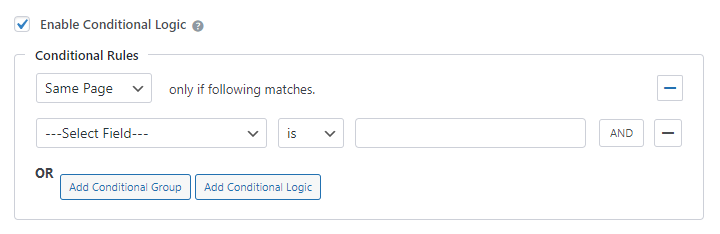
Same Page: Users stay on the current page with a success message.
- Best for: Simple confirmations and newsletter sign-ups.
- Use when: You want to keep users engaged on the same content.
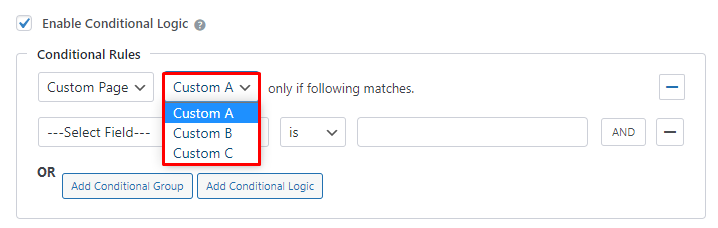
Redirect to Custom Page: Users go to a specific page on your website.
- Best for: Thank you pages, download pages, and next steps.
- Use when: You have dedicated landing pages for different user types.
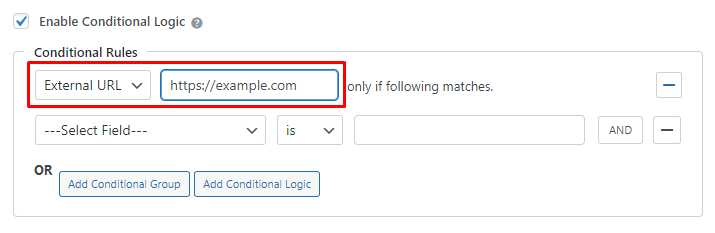
Redirect to External URL: Users go to an external website.
- Best for: Third-party services, partner sites, external resources.
- Use when: Integrating with external tools or services.
For more details on configuring the confirmation type, you can refer to our documentation on Form Confirmation.
Setting Up Conditional Rules #
Every conditional rule consists of three parts:

Field Selection:
Choose which form field to evaluate:

- Select from the dropdown: Name, Email, Phone, or any custom field.
- The field must exist in your form to appear in the dropdown.
Comparison Operators:

- is: Exact match.
- is not: Does not match exactly.
- empty: Field has no value/is blank.
- not empty: Field has any value.
- greater than: For number fields, compare if the value is higher.
- less than: For number fields, compare if the value is lower.
Value Input

Enter the value to compare against
- Case-sensitive matching.
Logical Operators
To add more rules, you can click on Add Conditional Group and use the logical operators:
- AND: All conditions must be true.
- OR: Any one of the conditions can be true.
Similarly, you can click on the “-” to delete the rules.

AND Logic (Within Groups)
All conditions in a group must be true for the rule to trigger. To add a new rule using the AND operator, you can click on AND:

If you create more than one rule, you can activate or deactivate the rules by toggling the Active.
Example of setting a Conditional Rule for Form Submission Confirmation #
In this example, we want to redirect the user to the pricing page after they submit their form if their Subject is ‘Product Pricing’. If the subject is anything else, the default confirmation setting should work. The default setting is to redirect them to the Frontend Listing.

Let’s now look at the behaviour of the form: